![SprintSuite_Logo_Primary(RGB).png]](https://www.sprintsuite.com.au/hs-fs/hubfs/SprintSuite_Logo_Primary(RGB).png?height=40&name=SprintSuite_Logo_Primary(RGB).png)
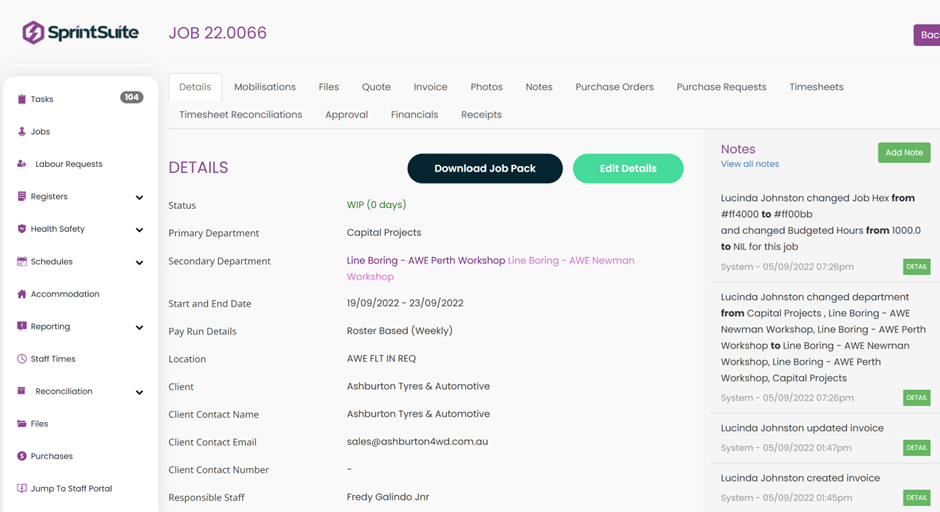
Click on CREATE JOB or click into a job that has already been created.
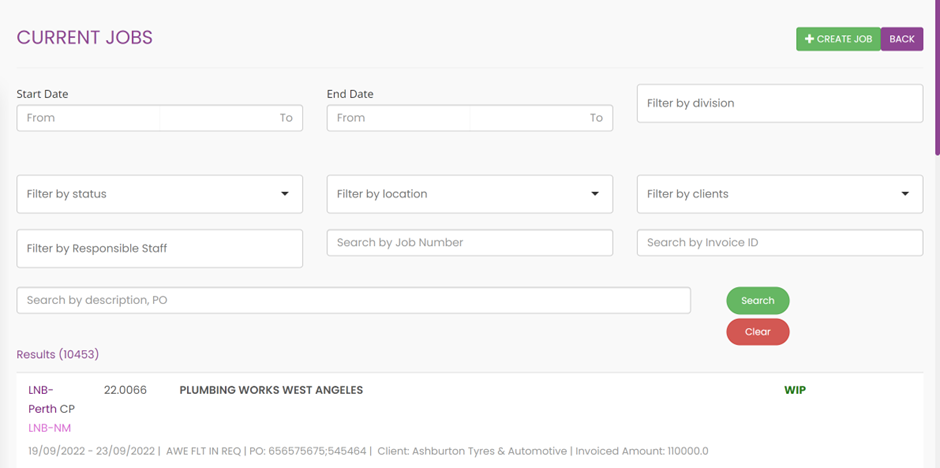
If you wish to update a current job. Click on the Edit Details tab, you can now toggle on the Custom Job Colour on Schedule. If this is toggled on it will appear green and then give you option to pick a colour. Red is the default colour that appears. If you click on the red you have the option to select another colour.

Make sure to then scroll to the end and Save Changes.
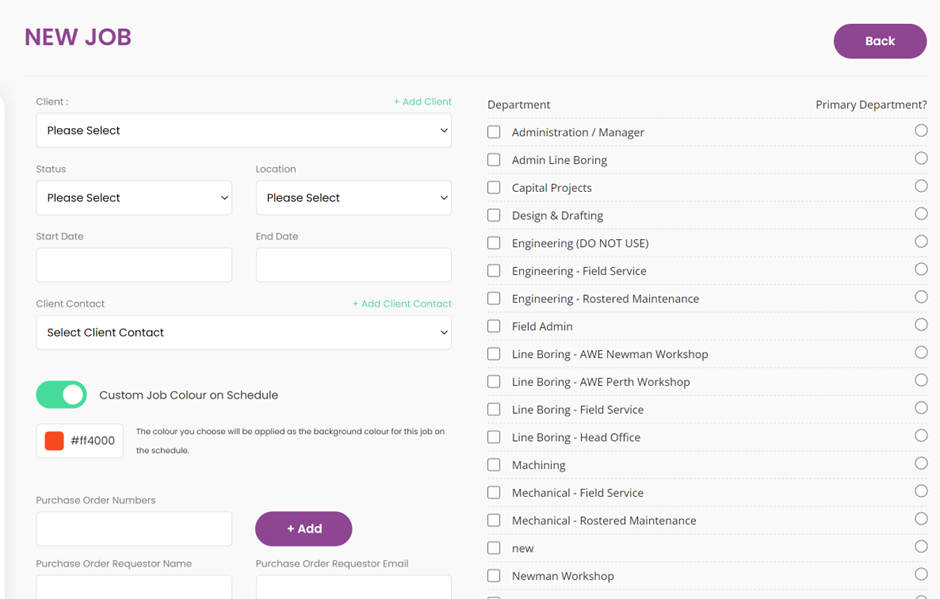
If you created a new job, you would fill in the below NEW JOB page and choose a colour and Save Changes.
In your Schedules in the Staff Scheduler or Site Scheduler.
Admin Users can now view the jobs by the selected colour that was chosen when setting up the job or editing the job.
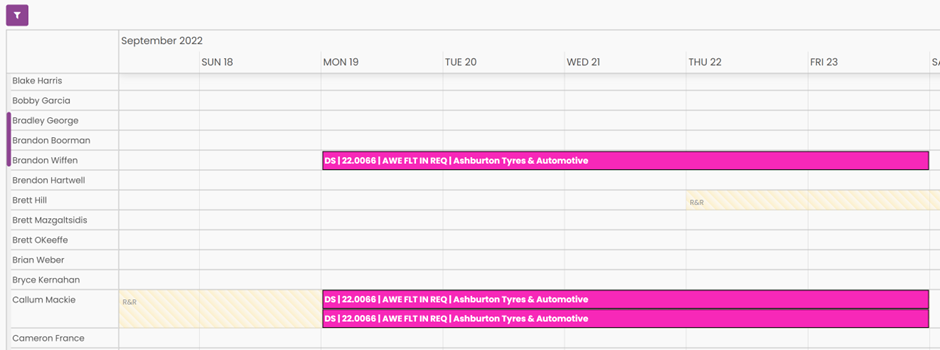
HANDY HINT- If the click on the job in the scheduler it will take you back into the job which will take you back to the Edit Details page of the job.